The link is the thing you hand a client
If you are a buyer's advocate, most of your week ends up as links. You find three addresses worth a look, you send them to a client, and the client decides what to inspect on Saturday from whatever is in their inbox.
A property profile is a good thing to send. It answers the questions a listing does not: how long is the real walk to the station, which primary schools the address is actually zoned near, what is within ten minutes on foot, how the address ranks against the rest of its suburb. But until now, sending one had a flat spot. Your client opened a page that looked like someone else's website, and the research you did disappeared behind our brand.
That is what branded share links fix. You can now send any property profile on geoscore.com.au with your own banner across the top — your organisation name, in your colour — and see when your client opens it.
It is free. All of it — the banner, the view counts, the management page — comes with an ordinary geoscore account, and the account is free too. There is no paid tier here, no per-link charge and no trial that runs out. If you send clients property research, this is yours.
What your client sees
A coloured bar pinned to the top of the page as it scrolls:
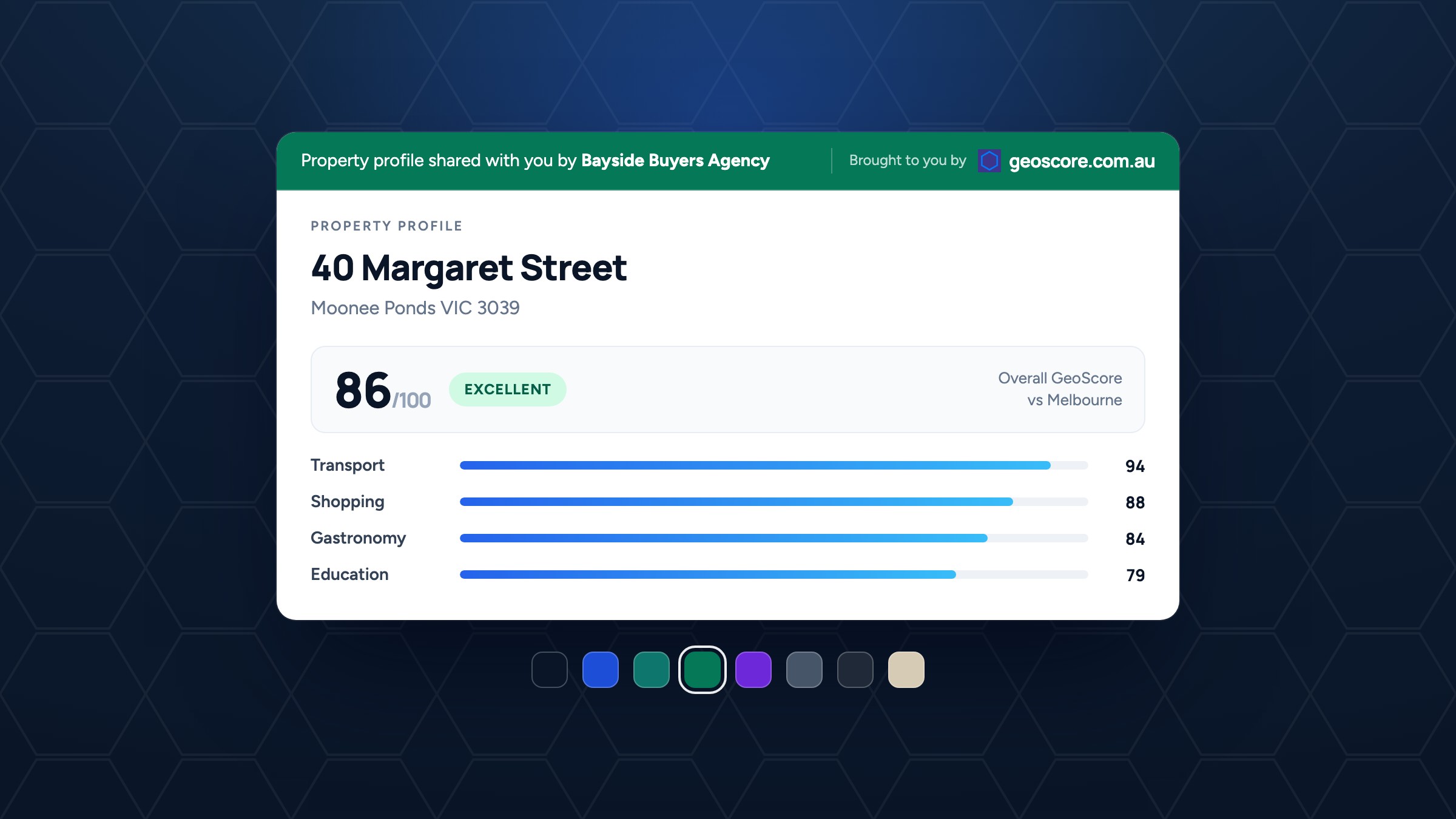
Property profile shared with you by Bayside Buyers Agency
Underneath it is the full property profile. Not a cut-down preview, not a teaser, not a sign-up wall — the same page an anonymous visitor gets, including the walkability scores, the category breakdown, nearby amenities with walking times, transport and commute context, school catchments, green space, dining, shopping, health, and the interactive map.
Three things are deliberately true about that page:
- No account is needed to open it. Your client clicks the link and reads the report. Nothing is gated, nothing asks them to register first.
- The banner is the only masthead. On a branded link we drop our site header and breadcrumbs. The first thing on the page is your name, not ours.
- Our name stays as the credit. On the right of your banner, in small type, sits "Brought to you by geoscore.com.au", linked to our home page. Your client arrived with no idea where the data came from — that line is how they find out, and it is the only line of ours on the bar.
That second and third point are the whole design. The page has to read as your tool while remaining honestly attributable.
Creating one takes two clicks
On any property profile, open Share in the map sidebar.
Signed in with an organisation name on your profile, the modal shows a live preview of your banner — real banner markup in your saved colour, not an illustration of it — and one button: Create share link. Press it and the URL appears in a copy box, ready to paste into an email or a message.
The first time you share, the modal asks for your organisation name inline and saves it to your profile, so you are not sent off to another page in the middle of sending a link. You came to get a link; you get a link.
Not signed in? The same Share button gives you the plain page URL and a copy button, with a preview of what the branded version looks like. Signing in is the only thing standing between the two — the account costs nothing, and neither does the banner.
Pick your colour once
Your banner colour lives on your profile page, under Sharing, as a grid of eight swatches with a live preview above them: navy, blue, teal, emerald, violet, slate, charcoal and sand.
Eight, rather than a free colour picker, is a choice we will defend. Every one of those pairs has been contrast-checked against its own text, so the banner is legible on a phone in daylight and to a client using a screen reader. A hex field would mean somebody's client-facing report eventually goes out as pale yellow on white — or as magenta. Eight fixed accents cover essentially every Australian agency palette well enough to feel chosen, and every banner looks designed.
Set the colour once and every link you create afterwards inherits it. Links you have already sent keep the colour they were made with, which brings us to the part that matters most if you do this at volume.
Your links, after you have sent them
Shared Links (in your account menu, at /property/shared/) lists every link you have
created, newest first. Each row carries the address, the name it was shared under, its
banner colour, when you created it, how many times it has been viewed, and when it
was last opened.
You can filter by All / Active / Revoked, sort by newest, oldest or most viewed, and for any link:
- Copy the URL again, without going back to the property page.
- Rename it — handy if you sent it under a trading name and want the legal one, or if you have changed firms.
- Recolour it, independently of your current default.
- Revoke it, one at a time or as a bulk selection.
Two behaviours here are not accidents.
Renaming a link is per link, not retroactive. Your organisation name is captured onto each link at the moment you create it, rather than read live from your profile. If we read it live, fixing a typo or changing agencies would silently re-attribute every link you had ever sent — including one sitting in a client's inbox from six months ago, now claiming to come from a firm that had nothing to do with that advice. Snapshotting it makes that rewrite a decision you take, link by link, rather than a side effect of editing your profile.
Revoking is quiet. A revoked link does not break, 404, or tell your client that something was withdrawn. It renders the ordinary geoscore property profile without your banner. Whether you have stopped working with someone is not a conversation a website should start on your behalf.
What the view counts tell you — and what they don't
The view count is the part advocates tend to react to. Knowing a client opened an address three times, and which of the four you sent they ignored, is genuinely useful before a Saturday of inspections.
We have kept it deliberately blunt:
- Your own visits are not counted. You check your own links; counting that tells you nothing about whether the client ever opened it.
- Bots are filtered out. Crawlers and preview fetchers do not inflate the number.
- You see a count and a date. Nothing else. No IP addresses, no locations, no per-session detail, no device. Your client is a person reading a web page, not a tracked lead, and we are not going to hand over a surveillance log of their evening.
That is the line we drew: enough to tell you whether your work landed, not enough to report on somebody's browsing.
The link grants nothing — which is the point
Worth being explicit about, because it is unusual for a "share link".
The token in a branded link unlocks nothing. It changes the page's appearance and nothing else. Every property profile on geoscore.com.au is already public, so a recipient of your link sees exactly what the open web sees.
That has a practical consequence for you: the link is not a credential, so you do not have to be careful with it. Forward it, paste it into a group chat, put it in a newsletter, let your client send it to their partner and their mortgage broker. There is no password to leak, no expiry to manage, and nothing behind it that was supposed to stay private.
It also means a mistyped or truncated URL cannot produce an error. Every failure — a bad token, an unknown one, a revoked one, one edited to point at a different address — renders the ordinary property profile. Your client never lands on something that looks broken because their email client wrapped a line.
Two housekeeping limits, which you are unlikely to meet in normal use: 50 new links per day, and 1,000 active links at a time. Revoke old ones to make room.
Branded pages are also marked noindex for search engines. The profile itself stays
indexed at its clean URL; your client's branded copy of it does not turn up in a search
for your agency name.
How advocates are using it
The pattern that has emerged is a shortlist in an email:
- Search each address, check the scores and the walk times, decide which ones survive.
- Hit Share on the three that do, and paste the branded links into one message.
- Check Shared Links the next morning. The address with three views is the conversation to have; the one with none is the one to ask about.
It is the same work you were doing. The difference is that the page your client reads now has your name on it, and that you find out whether they read it.
Getting started
- Add your organisation name and pick a banner colour on your profile — about thirty seconds, once.
- Open any property profile, hit Share, and create a link.
- Watch the views land on your Shared Links page.
If you do not have an account yet, creating one takes an email address and nothing else — no card, no plan to choose. Search any Australian address to get started.